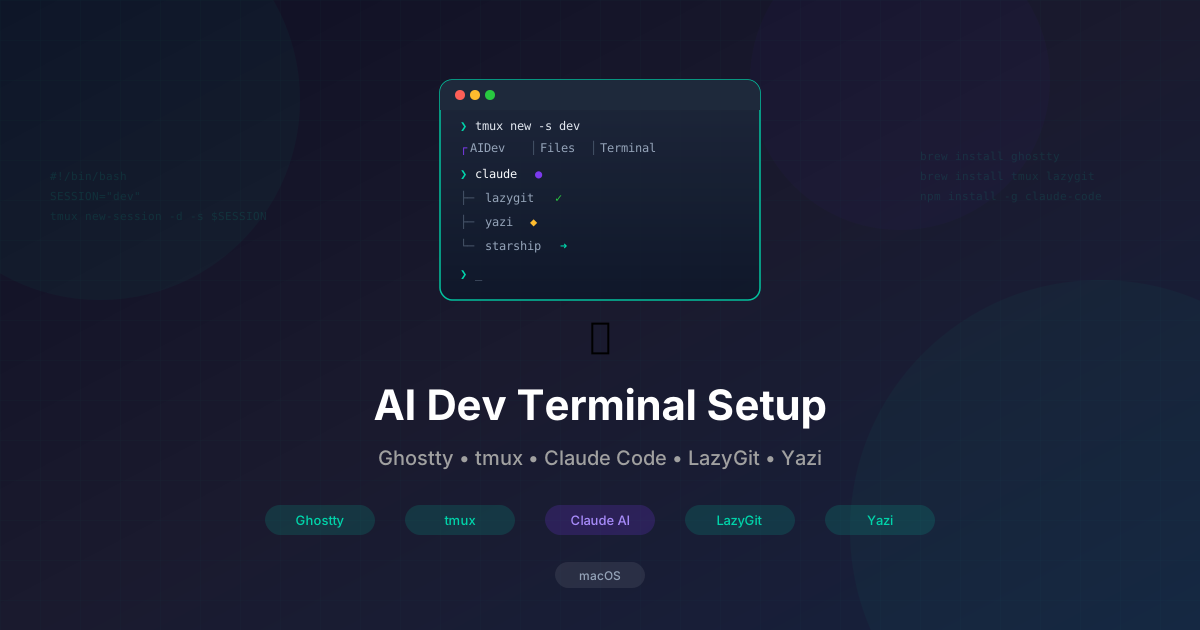
AI Dev Terminal Setup en MacOS: Ghostty + tmux + Claude + LazyGit + Yazi
Guía completa para crear un entorno moderno de desarrollo desde terminal con IA en MacOS. Configura Ghostty, tmux, Claude Code CLI, LazyGit, Yazi y Starship prompt.
3 min de lectura
Guía completa para crear un entorno moderno de desarrollo desde terminal con IA.
📦 Stack final
Este workspace incluye:
- Terminal moderno (Ghostty)
- tmux (multiplexor de terminal)
- Claude Code CLI (AI coding agent)
- LazyGit (Git TUI)
- Yazi (File manager TUI)
- Starship prompt (prompt moderno)
Resultado:
tmux session "dev"

Window 1: AIDev
 ├─ Claude Code
 └─ LazyGit

Window 2: Files
 └─ Yazi (con archivos ocultos)

Window 3: Terminal
 └─ Shell normal
1️⃣ Instalar dependencias
Terminal Ghostty
brew install --cask ghosttyNerd Font
brew tap homebrew/cask-fonts
brew install --cask font-jetbrains-mono-nerd-font
Configurar la fuente en Ghostty:
JetBrainsMono Nerd Font2️⃣ Instalar herramientas base
brew install tmux lazygit starship
brew install yazi ffmpeg p7zip jq poppler fd ripgrep fzf zoxide
Claude Code:
npm install -g @anthropic-ai/claude-code
claude login
3️⃣ Configurar ZSH + Starship
Editar .zshrc:
eval "$(starship init zsh)"Crear config:
mkdir -p ~/.config
nano ~/.config/starship.toml
add_newline = true
[character]
success_symbol = "[➜](bold green)"
[nodejs]
symbol = "⬢ "
[git_branch]
symbol = "🌱 "
[directory]
style = "bold cyan"4️⃣ Configuración PRO de tmux
Crear:
nano ~/.tmux.confunbind C-b
set -g prefix C-a
bind C-a send-prefix
set -g mouse on
set -g base-index 1
setw -g pane-base-index 1
set -g history-limit 100000
bind | split-window -h
bind - split-window -v
bind -n M-Left select-pane -L
bind -n M-Right select-pane -R
bind -n M-Up select-pane -U
bind -n M-Down select-pane -D
bind -n M-S-Left resize-pane -L 5
bind -n M-S-Right resize-pane -R 5
bind -n M-S-Up resize-pane -U 5
bind -n M-S-Down resize-pane -D 5
set -g default-terminal "tmux-256color"
set -ga terminal-overrides ",xterm-256color:Tc"
set -g allow-passthrough onAplicar:
tmux source ~/.tmux.conf5️⃣ Configurar Yazi para mostrar archivos ocultos
mkdir -p ~/.config/yazi
nano ~/.config/yazi/yazi.toml[manager]
show_hidden = true6️⃣ Script automático de entorno DEV
mkdir -p ~/scripts
nano ~/scripts/dev
#!/bin/bash
SESSION="dev"
if ! tmux has-session -t $SESSION 2>/dev/null; then
tmux new-session -d -s $SESSION -n AIDev
tmux split-window -h -t $SESSION:1
tmux send-keys -t $SESSION:1.1 "claude --dangerously-skip-permissions" C-m
tmux send-keys -t $SESSION:1.2 "lazygit" C-m
tmux select-layout -t $SESSION:1 even-horizontal
tmux new-window -t $SESSION:2 -n Files
tmux send-keys -t $SESSION:2 "yazi" C-m
tmux new-window -t $SESSION:3 -n Terminal
fi
tmux select-window -t $SESSION:1
tmux attach -t $SESSIONPermisos:
chmod +x ~/scripts/devAlias:
alias dev="~/scripts/dev"7️⃣ Uso diario
Iniciar entorno:
cd tu-proyecto
dev
Cerrar tmux:
tmux kill-server🎉 Workflow final
| Herramienta | Uso |
|---|---|
| Claude | Escribir código con IA |
| LazyGit | Gestión de commits y branches |
| Yazi | Explorar archivos del proyecto |
| tmux | Organizar todo el workspace |


